Requester
Can submit and track requests. Cannot assign, start, pause, resume, or complete a job.
CREWCLEAR DOCUMENTATION
Use these visual guides to connect requester domains, submit complete requests, direct the work, and carry out assignments without crossing role boundaries.
Can submit and track requests. Cannot assign, start, pause, resume, or complete a job.
Can triage, assign, route, manage employee access, and operate work when authorized.
Can act on assigned work, record constraints, attach evidence, and complete the field workflow.
REQUESTER GUIDE
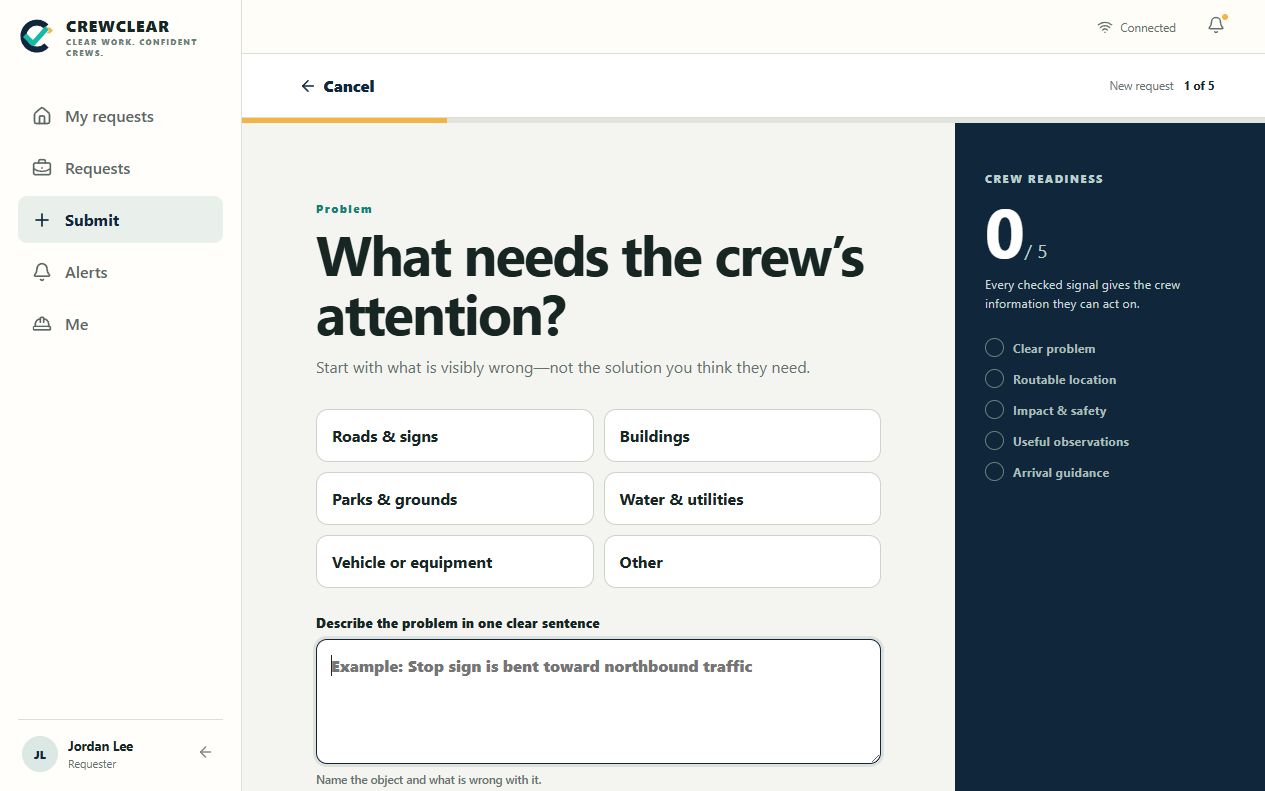
CREWCLEAR asks one focused question at a time and rewards useful detail with a five-point readiness score.
Open Create a ticket and enter your organization email. A registered domain securely finds the correct workspace.
Choose the category and describe what is visibly wrong—not the repair you think is needed.
Verify the exact address and map position so the job can become a route stop.
Add impact, safety, useful observations, and arrival guidance.
Add your name and password, choose email updates, and request a verification link.
Open the email, review the ticket, and press Confirm and submit. Only then are the requester account and ticket created together.
If Action needed appears later, answer the supervisor’s question; the ticket returns to review automatically.
Why location verification mattersThe same confirmed location drives supervisor mapping, route planning, and employee navigation.
SUPERVISOR GUIDE
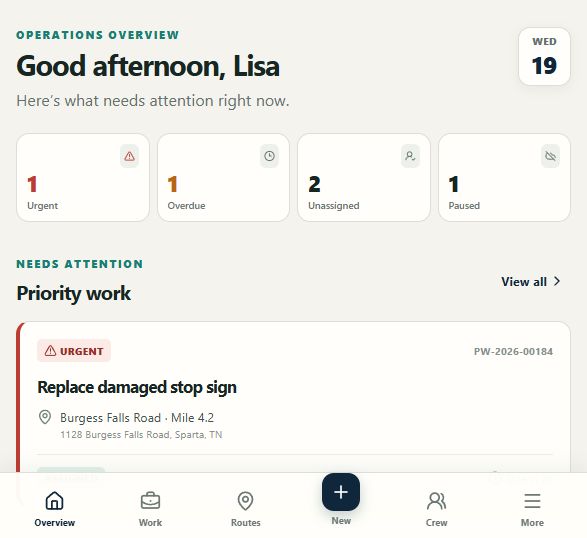
The overview puts priority work and operational exceptions first, then carries verified locations into assignment and routing.
Review urgent, overdue, unassigned, waiting-on-requester, and paused totals.
Open a request to confirm scope, priority, location, and evidence.
If one detail is missing, choose Request clarification and ask one focused question.
Review the requester’s answer, then assign the employee with the right availability and context.
Add mapped jobs to a route and watch paused work by reason.
No dispatch on a guessThe ticket stays in Waiting on requester until an answer arrives, then returns to supervisor review with the full exchange attached.
OPERATIONS PULSE
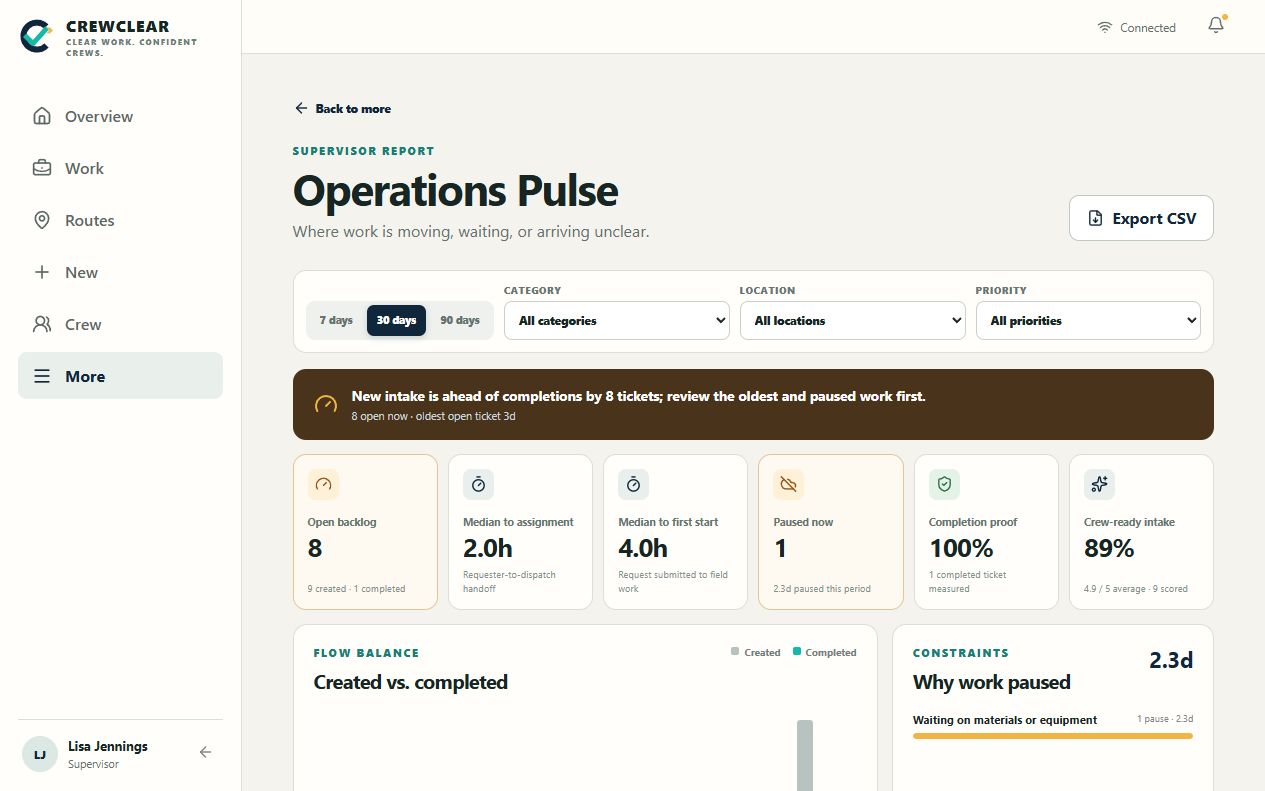
The supervisor report connects work volume, handoff speed, constraints, completion proof, and requester readiness without ranking individual employees.
Choose a 7, 30, or 90-day period and filter by category, location, or priority.
Compare created and completed work to see whether intake is outpacing the crew.
Review median time to assignment, first start, and requester clarification response.
Use clarification rate, pause reasons, and duration to remove recurring handoff problems.
Open the oldest waiting tickets directly or export the filtered records to CSV.
Crew-ready becomes measurableReadiness signals and clarification frequency show where intake prompts should improve—not which person to blame.
EMPLOYEE GUIDE
Employees receive a clear next job and only the controls needed to carry out authorized work.
Open the recommended assignment and confirm the location and job details.
Start the job when work physically begins.
If work cannot continue, pause it with a reason such as access, parts, weather, or another person.
Resume from the same record when the constraint clears.
Add required notes, photos, labor, materials, and checklist answers before completion.
A pause is information, not failureA structured reason tells the supervisor what is blocking progress and preserves an honest timeline.
ACCESS & SECURITY
Supervisors control employee access and which verified email domains can route new requester tickets into the workspace.
Verify your own organization email, open More → Requester access, and register that exact domain. Public inbox domains are blocked. Use the private workspace code for outside contractors.
Open Crew to send a tenant-scoped employee invitation. Revoke access when a person leaves or no longer needs the workspace.
Domain matching routes a request; it does not replace mailbox verification. Every requester must confirm the single-use email link before the account and ticket exist.
READY TO TRY IT
The public demo contains separate requester, supervisor, and employee workflows with prepared sample data.